Free Wipe Disk Software for Windows
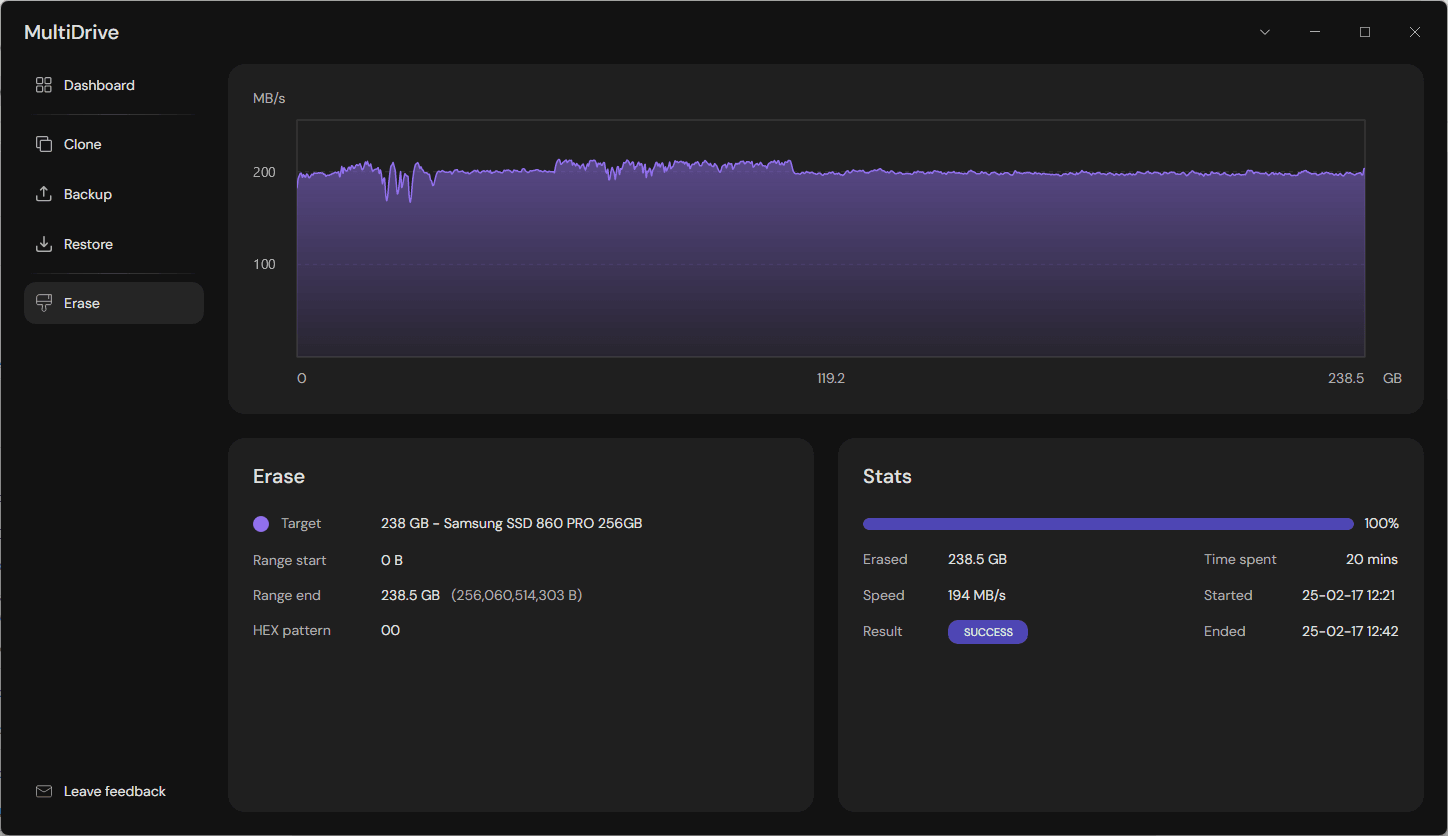
Securely wipe data from any drive. Completely erase an HDD, safely wipe an SSD, or clear a flash drive in just 3 clicks. Irreversibly delete files and wipe free space.
Clean and free: No registration. No hidden payments. No annoying ads.
Trusted by
30,000+
users worldwide
Why Choose MultiDrive as Your Disk Erasing Software?
100% Freeware
MultiDrive is a free disk erasing software without ads or hidden costs.
Pause/Resume Data Wiping Tasks
Pause and continue drive wiping when needed.
Portable Eraser
Install MultiDrive's portable version on a USB stick to have an easy-to-use data erasure tool always at hand.
Wipe Drives with Errors
If Windows can't read your drive, MultiDrive can still wipe it if the drive has minor errors.
Wipe Drives in Parallel
Save time by running multiple disk erasing sessions simultaneously.
Automate drive erasing using CLI and scripts
Streamline mass drive wiping with a free command-line interface and its parameters.
How to Erase a Flash Drive, SSD, or HDD in Only 3 Clicks
With MultiDrive, wiping a drive is free, easy, and fast.
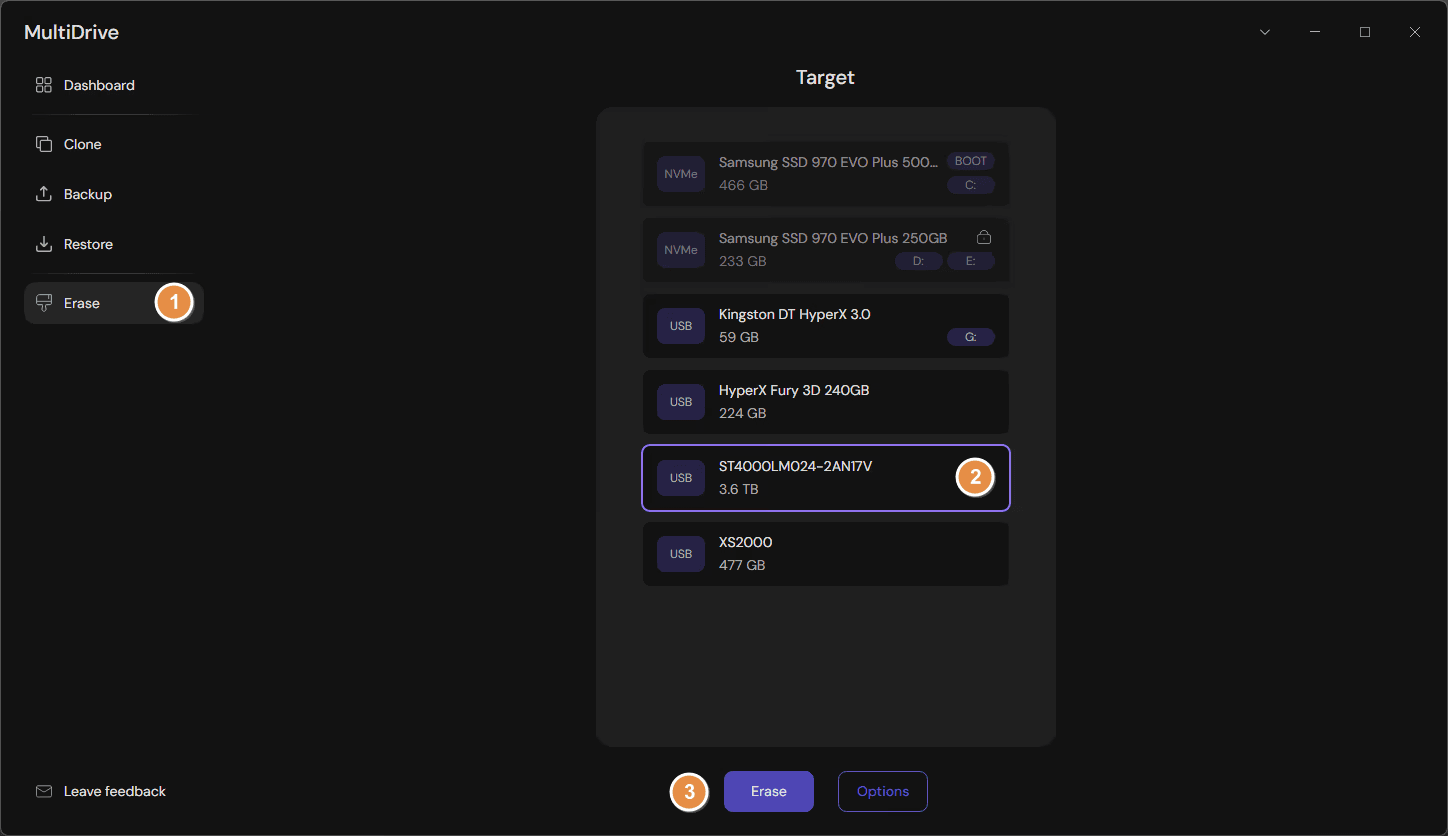
Once you have installed and launched MultiDrive and have connected a flash drive, SSD, or HDD to your PC, it takes only 3 clicks to completely and securely wipe data and all traces of deleted files from your device:
From the left menu, select Erase.
Select your drive. Double-check your selection, as all data on the device will be deleted permanently.
Click the Erase button at the bottom.
For added safety, MultiDrive won't allow you to erase the boot drive and will alert you if a device you want to erase contains data.
See Erase Data from a USB Drive in Action
What Drive Types Can I Erase with MultiDrive Disk Wiping Utility?
MultiDrive disk wiping utility can irreversibly erase all popular drive types:
Internal HDDs (Hard Disk Drives)
- SATA HDDs
- SAS HDDs
- IDE HDDs
Internal SSDs (Solid State Drives)
- SATA SSDs
- SAS SSDs
- M.2 SATA SSDs
- M.2 NVMe SSDs
- U.2/U.3 NVMe SSDs
Portable Drives
- USB thumb drives
- External USB HDDs
- External USB SSDs
- Memory cards
- PCMCIA/PC card drives
Typical Use Cases for MultiDrive Disk Wiping Software
Erase a Hard Drive
Permanently clear all data, including traces of previously deleted files from an old HDD before disposing of, donating, or repurposing the drive.
Safely Wipe an SSD
Wipe all files and sanitize a free space of your solid-state drive. Make sure that your personal data is gone for good and cannot be recovered.
Erase a USB Drive
Wipe a flash drive entirely. Securely clean your external hard drive connected via USB.
Detailed Drive Wiping Guides
Need help getting started?
Check out our detailed guides that walk you through various scenarios.
How to automatically wipe drives
PowerShell script that checks all drives and erases them in parallel with -y mode.
Read MoreHow to wipe a hard drive
Learn tried and tested methods on how to safely erase your HDD in Windows 11 and 10. Complete step-by-step guide.
Read MoreHow to clear a USB drive
Quick step-by-step tutorial on how to erase a USB drive for free, permanently deleting all data and making information unrecoverable.
Read MoreWipe Data with MultiDrive: Disk Erasure Features in Detail
Protection Against Accidentally Wiping the Wrong Drive
MultiDrive software protects you from accidental errors and misclicks when you select a drive to wipe from the device list:
- It will alert you if the device you want to erase contains data. You'll have to manually type "YES" to confirm the disk wiping operation.
- It won't allow you to erase the boot drive on which the Windows OS is running.
How Does MultiDrive Software Wipe Drives?
MultiDrive software wipes drives by overwriting every single bit of the device's space with a default (00) or custom byte pattern.
This method ensures that all folders and files, including hidden and deleted ones, are irreversibly erased. The free drive space, which could contain traces of previously deleted files, is securely sanitized as well.
Pause and Resume Data Wiping Tasks
During the disk erasure, you can press the Pause button in the MultiDrive window to temporarily stop the wiping process and then resume it later from the exact same place.
This feature is useful when you need to turn off your PC or leave your workplace for a period of time.
Erase Multiple Drives in Parallel
To save time, MultiDrive can run multiple drive wiping tasks simultaneously, erasing several drives in parallel.
The progress and status of each running and completed task are shown on the Dashboard.
You can also launch multiple drive erasing processes in parallel using the command-line interface.
Erase a Specific Partition or Sector Range
With MultiDrive, you can wipe only a specific partition or sector range of a drive:
- Select the drive you want to partially erase.
- On the Erase screen, click the Options button.
- Select the range or the partition you want to wipe.
- Click Apply.
This feature is also available via MultiDrive's command-line interface.
Mount a Wiped Drive After Erasure
MultiDrive can automatically mount a drive after the completion of the wiping task. To enable this feature, click the Options button on the Erase screen.
After mounting, the drive becomes "visible" to Windows and available for formatting and other operations.
Use MultiDrive as a Portable Eraser to Wipe Drives on Multiple PCs
MultiDrive's portable version runs without installation from any USB drive on a Windows PC.
It has all the wiping features of the desktop version and is completely free to use as well.
Wipe Drives Using the Command Prompt (CLI)
For advanced users who prefer entering text commands, MultiDrive offers a command-line interface for streamlined and automated drive wiping. The command syntax is simple:
mdcli.exe erase [target]
Check our detailed guide on how to erase disk from cmd >
Disk wipe features available through the CLI include:
- Automatic mounting of the wiped drive
- Defining the starting byte offset where the erasing process will begin
- Specifying the number of bytes to erase (like 500MB or 1TB)
- Defining a custom hex byte pattern to fill the drive with during the erasing process
Limitations of the MultiDrive Wipe Disk Software
As a free disk wiping utility, MultiDrive has its limitations compared to paid data erasure tools.
The MultiDrive data erasure tool doesn't support specialized wiping methods, such as Secure Erase, Format NVM, or DoD 5220.22-M.
How Long Will It Take to Wipe a Drive?
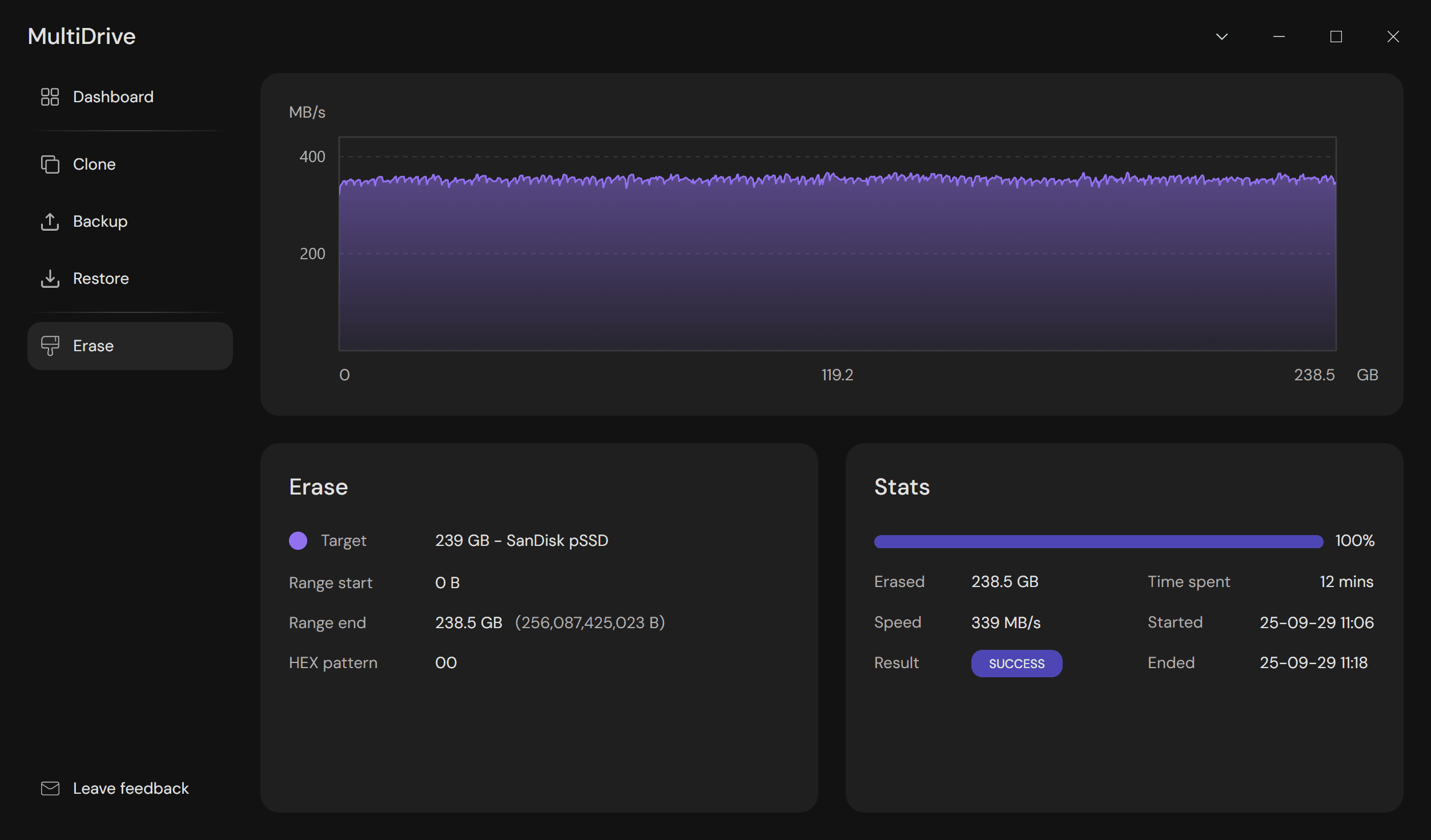
The time needed to wipe a drive depends on the device write speed and the throughput rate of your USB port and adapter, if connected externally.
Typically, HDDs are much slower than SATA SSDs, and NVMe's are the fastest ones.
Here is the average estimated time for sequential wiping different types of drives:
| Device type | Drive | Capacity | Estimated Time to Wipe a Drive |
|---|---|---|---|
| USB Flash Drive | Kingston DataTraveler Max | 512 GB | ~35 minutes |
| SATA HDD | WD Black 8TB | 8 TB | ~12 hours |
| USB HDD | Seagate Expansion Desktop | 8 TB | ~13 hours |
| SAS HDD | HGST Ultrastar DC HC320 | 8 TB | ~10 hours |
| SATA SSD | Samsung 870 EVO | 2 TB | ~ 1 hour |
| USB SSD | Samsung Portable T9 | 4 TB | ~ 40 minutes, if your USB port is USB 3.2 Gen 2x2 |
| M.2 NVMe SSD | Samsung 990 PRO | 2 TB | ~ 20 minutes |
What Do People Say About MultiDrive Disk Erase Utility?
James at bestbackupreviews.com
April 2, 2026
MohammadAbir on reddit
August 8, 2025
chitochitochito on reddit
October 7, 2025
Mike's unboxing, reviews and how to
September 4, 2025
Viktor Shumylo on ProductHunt
December 8, 2025
Abdul Aziz Ahwan
December 19, 2025
Chilarai M on ProductHunt
December 8, 2025
How We Tested MultiDrive Data Wiping Features

Tetiana Hrybok
Head of Quality Assurance at Atola Technology.
Has led software testing for drive management products since 2017.
MultiDrive's Erase module was tested by our experienced in-house QA team of 6 professionals according to the following criteria:
- Speed: Achieves max data wiping speed for a variety of devices and ports.
- Optimization: Performs on any Windows system, from legacy PCs to high-end corporate infrastructure.
- Windows: Is compatible with modern Windows builds, including Windows 11/10 and Windows Server 2025/2022/2019.
- Adapters: Supports a wide range of external drive adapters.
- Hardware: Works with the widest range of drive types (HDD, SSD), interfaces (SATA, SAS, USB, NVMe), and capacities (including 20+ TB).
What's New In MultiDrive Software for 2026
What's new in 1.3 version?
- New WinPE image with MultiDrive pre-installed
- Erase: New option - Format drive after erasing
- Better recovery from write errors on target drives during Clone and Erase tasks
- Lightweight date representation: Oct 31 instead of 25-10-31
released on March 11, 2026
Erase drive FAQ
Answers to common questions about drive erasing in MultiDrive