Automate Backups with MultiDrive CLI and Task Scheduler
Manual backups are a pain, and we forget to do them. That’s why an automatic backup is king.
Quick auto backup setup summary
- Install MultiDrive
- Create a batch script with mdcli.exe
- Configure Windows Task Scheduler
- Test the automated backup system
Time to complete: 10-15 minutes.
This guide shows you how to automate backups on Windows 11/10. It covers how to configure Task Scheduler to run MultiDrive CLI commands on whatever schedule works for you.
Table of Contents
- Prerequisites
- Intro to MultiDrive CLI
- Step 1: Test CLI backup command
- Step 2: Create automated backup script
- Step 3: Configure Windows Task Scheduler for auto backup
- Step 4: Test automated backup system
- Advanced configurations
- Best practices
- Troubleshooting
- FAQ
Prerequisites
First, make sure:
- You have MultiDrive ready to go. Download it if you haven’t already
- You’re logged in as an administrator. This is required to create scheduled tasks.
- Your external backup drive is connected and accessible. Internal or network drive also works.
Intro to MultiDrive CLI
MultiDrive includes a powerful command-line interface app named mdcli.exe that provides full access to backup, clone, restore, and erase operations without the graphical interface. It is located in the MultiDrive folder.
The basic syntax for creating a backup is:
mdcli backup [source] [target] <OPTIONS>
Example:
mdcli backup d1 E:\Backups\system-backup.zip
To see all available options for the backup command:
mdcli backup --help
Step 1: Test CLI backup command
Before automating, verify that your backup command works correctly by running it manually from Command Prompt.
1.1 Open Command Prompt in MultiDrive folder
- Run MultiDrive GUI app
- In the top right corner, click the down arrow icon and select "Launch CLI"
- Note the MultiDrive folder path C:\Users\Username\AppData\Local\MultiDrive>
1.2 Identify your source drive
List all available drives:
mdcli list
The drive list includes their Short ID and System ID. Note the ID of the drive you want to back up.
1.3 Run a test backup CLI command
Execute a backup to verify the command works:
mdcli backup d1 "E:\Backups\TestBackup_2026-01-15.zip" --hash=sha256
Command breakdown:
- d1 - Source drive (usually your C: system drive). Use the longer System ID instead if you want to ensure you're backing up the same drive.
- "E:\Backups\TestBackup_2026-01-15.zip" - Destination file (use quotes because paths can have spaces). If you specify .raw extension instead of .zip, the backup will be in RAW format without compression.
- --hash=sha256 - Verify backup integrity with SHA256 hash (optional).
Note: If successful, you'll see progress output. For automation, we'll suppress this output later.
Step 2: Create automated backup script
Create a Windows batch script (.bat file) that Task Scheduler can execute.
2.1 Create script directory
Create a folder to store your backup scripts:
mkdir C:\BackupScripts
2.2 Create the batch script
Open Notepad (or your preferred text editor) and create a new file with the following content:
@echo off
REM MultiDrive Automated Backup Script
REM Set variables
set MDCLI="C:\Users\Yaroslava\AppData\Local\MultiDrive\mdcli.exe"
set SOURCE=d2
set BACKUP_DIR=C:\Backups
set BACKUP_NAME=Backup_%date:~-4,4%-%date:~-7,2%-%date:~-10,2%_%time:~0,2%-%time:~3,2%.zip
set LOG_FILE=%BACKUP_DIR%\backup_log.txt

REM Create backup directory if it doesn't exist
if not exist "%BACKUP_DIR%" mkdir "%BACKUP_DIR%"

REM Log start time
echo ================================================ >> "%LOG_FILE%"
echo Backup started: %date% %time% >> "%LOG_FILE%"
echo Source: %SOURCE% >> "%LOG_FILE%"
echo Destination: %BACKUP_DIR%\%BACKUP_NAME% >> "%LOG_FILE%"

REM Execute backup
%MDCLI% backup "%SOURCE%" "%BACKUP_DIR%\%BACKUP_NAME%" -y --hash=sha256 >> "%LOG_FILE%" 2>&1

REM Check if backup succeeded
if %ERRORLEVEL% EQU 0 (
 echo Backup completed successfully >> "%LOG_FILE%"
 echo Status: SUCCESS >> "%LOG_FILE%"
) else (
 echo Backup failed with error code %ERRORLEVEL% >> "%LOG_FILE%"
 echo Status: FAILED >> "%LOG_FILE%"
)

echo Backup finished: %date% %time% >> "%LOG_FILE%"
echo ================================================ >> "%LOG_FILE%"
exit
2.3 Save the script
- Save the file as: C:\BackupScripts\DailyBackup.bat
- In the "Save As" dialog in Notepad, set "Save as type" to "All Files (*.*)".
- Ensure the extension is .bat, not .bat.txt
2.4 Customize the script variables
Edit these variables to match your automatic backup setup:
- MDCLI - Absolute path to mdcli.exe which is located in MultiDrive folder.
- SOURCE – Change to your drive (e.g., use Short ID d2 or System ID "SCSI\DISK&SOMEID&SOMEID\SOMEID" for second drive)
- BACKUP_DIR – Change to your external drive path (e.g., D:\Backups)
- BACKUP_NAME – Customize filename (currently includes date: Backup_2026-01-15.zip)
2.5 Test the automated backup script manually
Right-click DailyBackup.bat and select "Run as administrator" to test.
Check backup_log.txt in your BACKUP_DIR to verify the backup completed successfully.
Step 3: Configure Windows Task Scheduler for auto backup
Now that your script is ready, we’ll use Task Scheduler to turn it into a reliable software for automatic backup. This setup handles everything in the background so you don’t have to.
3.1 Open Task Scheduler
- Press Windows key + R
- Type taskschd.msc and press Enter
- Task Scheduler window opens
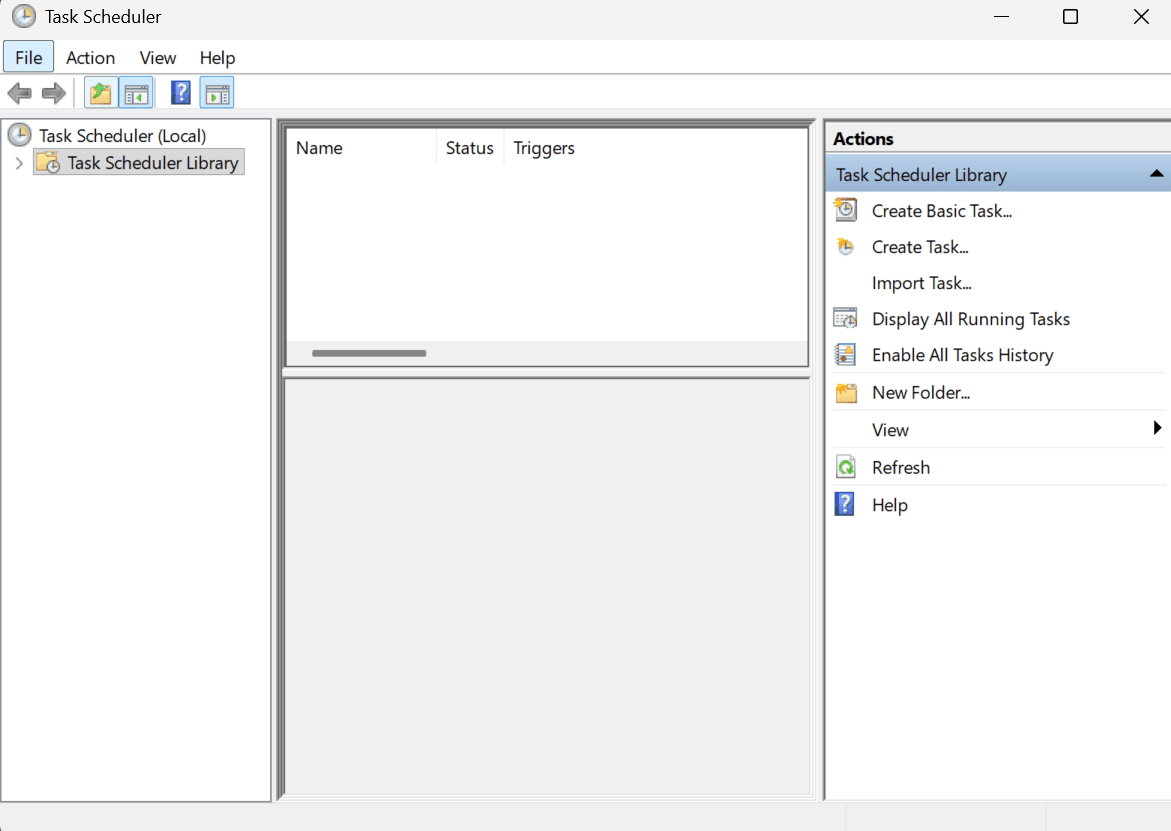
3.2 Create a new task
- In the right panel, click "Create Task..." (not "Create Basic Task")
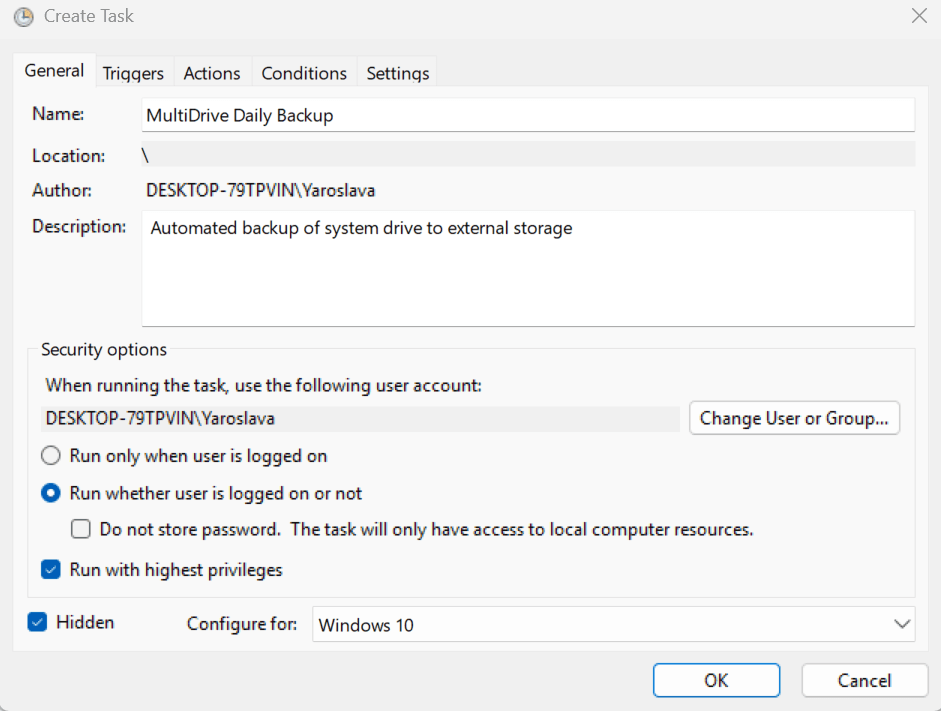
- The Create Task dialog opens with multiple tabs
- Set name: MultiDrive Daily Backup
- Description: Automated backup of system drive to external storage
- Security options:
- Select "Run whether user is logged on or not"
- Check "Run with highest privileges"
- Check "Hidden" (optional - prevents console window from showing)
- Configure for: Windows 10 (or Windows 11)
3.3 Triggers tab - Set schedule
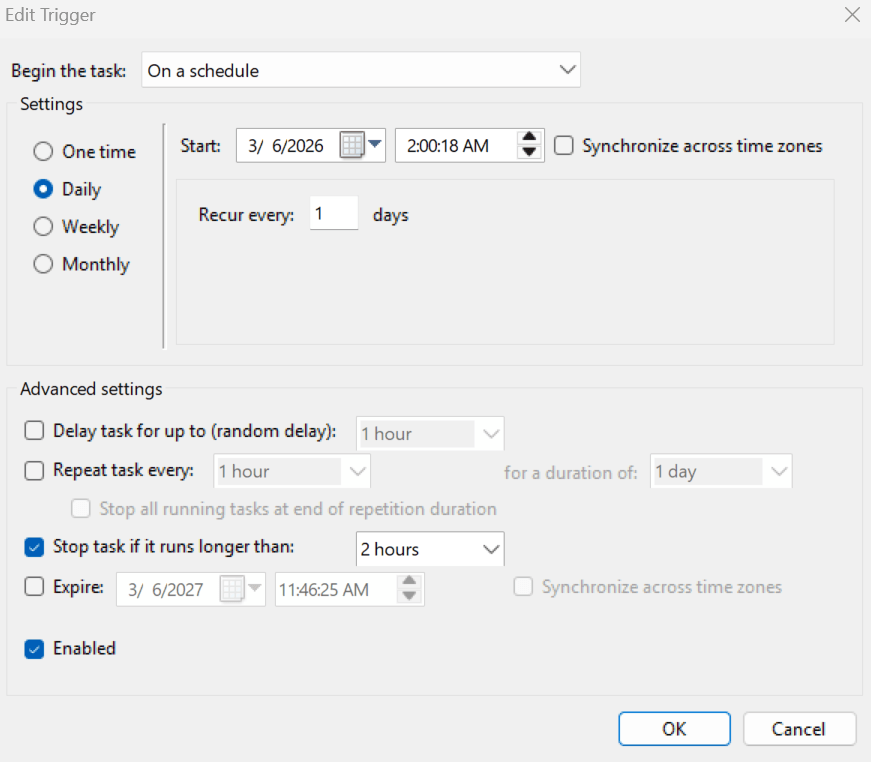
- Click "New..." to create a new trigger
- Begin the task: On a schedule
- Settings: Choose your preferred schedule:
- Daily: Runs every day at specified time (e.g., 2:00 AM)
- Weekly: Runs specific days of week (e.g., Sunday at 3:00 AM)
- Monthly: Runs on specific day(s) of month
- Advanced settings:
- Check "Enabled"
- Optionally set "Stop task if it runs longer than:" to 3 hours (prevents runaway processes)
- Click OK
Example schedule for daily backups at 2 AM:
3.4 Actions tab - Specify script
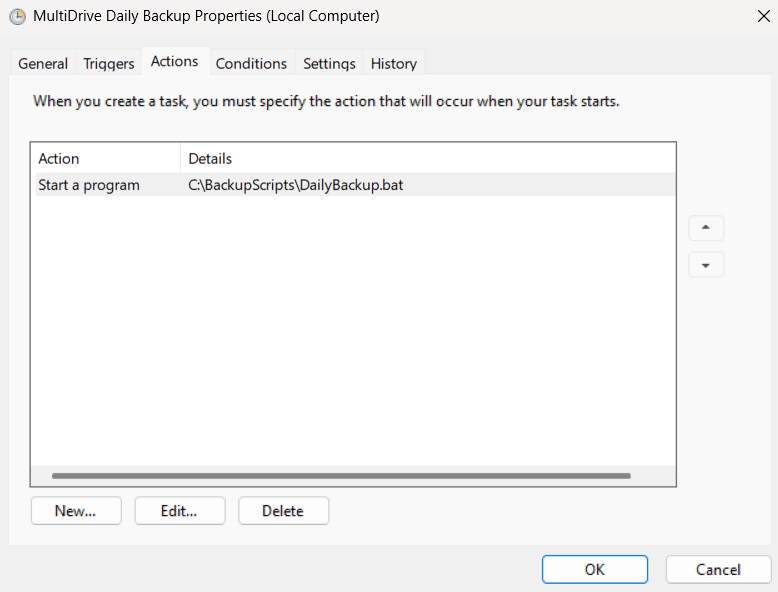
- Click "New..." to create a new action
- Action: Start a program
- Program/script: C:\BackupScripts\DailyBackup.bat
- Start in (optional): C:\BackupScripts
- Click OK
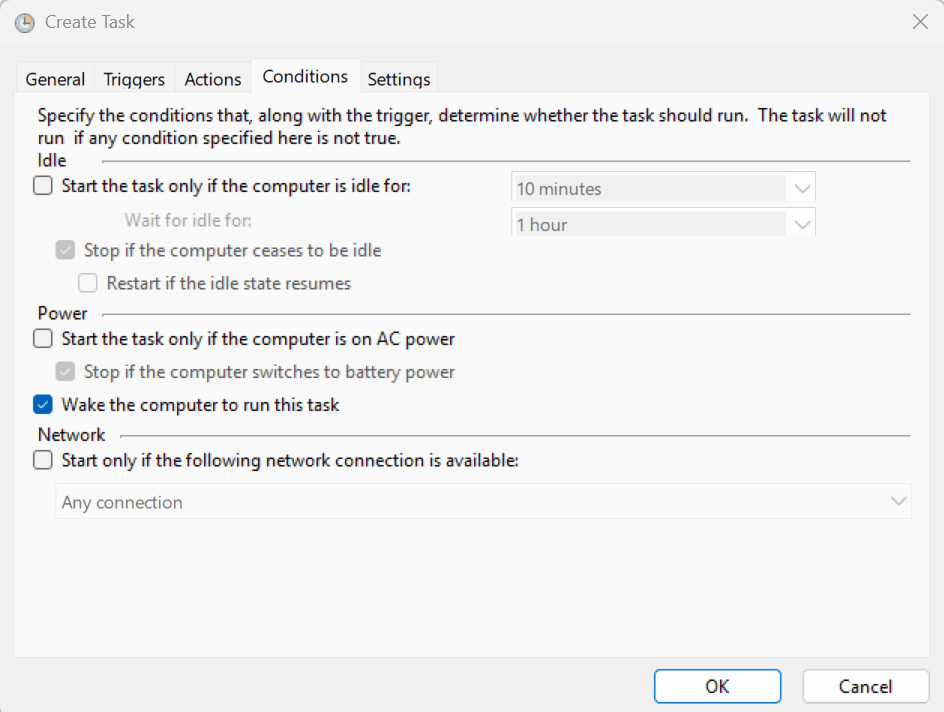
3.5 Conditions tab
- Power: Uncheck "Start the task only if the computer is on AC power" (for laptops - allows backup on battery)
- Check "Wake the computer to run this task" (ensures backup runs even if PC is asleep)
- Network: Leave default settings unless backing up to network location
3.6 Settings tab
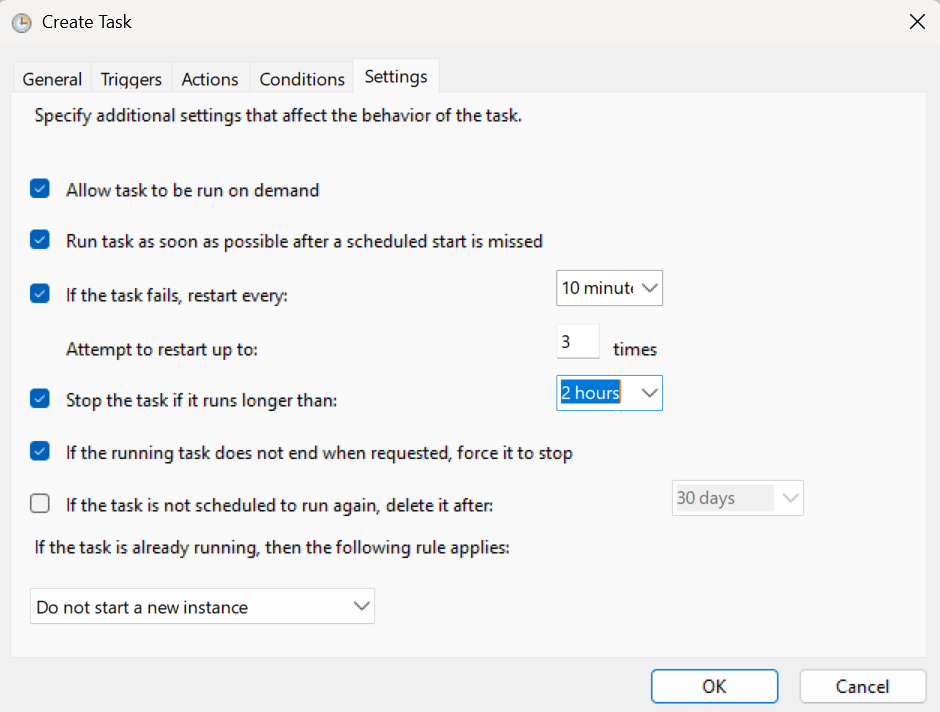
- Check "Allow task to be run on demand" (enables manual testing)
- Check "Run task as soon as possible after a scheduled start is missed"
- Check "If the task fails, restart every: 10 minutes" and set "Attempt to restart up to: 3 times"
- Set "Stop the task if it runs longer than:" to 2 hours (prevents hung processes)
3.7 Save the task
- Click OK to save the task
- You'll be prompted to enter your Windows password (required for "Run whether user is logged on or not")
- Enter your password and click OK
- The task is now created and scheduled
Step 4: Test automated backup system
Before relying on backup data automatically, verify that it works correctly.
4.1 Run task manually
In Task Scheduler, locate your "MultiDrive Daily Backup" task. Right-click the task and select "Run".
- Status changes to "Running"
- Wait for it to complete (status returns to "Ready")


4.2 Verify backup was created
Navigate to your backup directory (e.g., E:\Backups) and verify if the backup file exists.
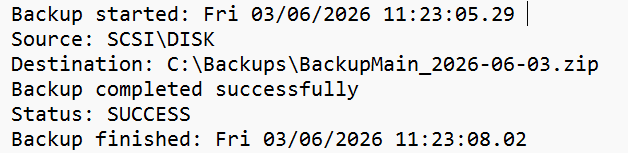
Open backup_log.txt and check for "Status: SUCCESS"

4.3 Check Task Scheduler history
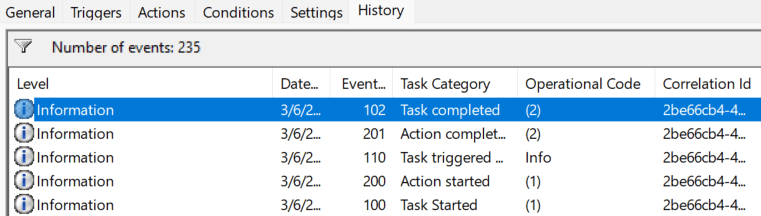
- In Task Scheduler, select your task
- Click the "History" tab at the bottom
- Verify "Task completed" event with no errors
Advanced configurations
Automatic backup cleanup
To prevent your backup drive from filling up, uncomment this line in your script to automatically delete backups older than 30 days:
forfiles /P "%BACKUP_DIR%" /M *.zip /D -30 /C "cmd /c del @path" 2>nul
Adjust -30 to your preferred retention period (e.g., -7 for 7 days, -90 for 90 days).
Email notifications
Add email notification when backup completes or fails using PowerShell in your script:
REM Send email notification (requires SMTP configuration)

powershell -Command "Send-MailMessage -From '<from_email>' -To '<to_email>' -Subject 'Backup Completed' -Body 'Daily backup completed successfully' -SmtpServer 'smtp.gmail.com' -Port 587 -UseSsl -Credential (Get-Credential)"
Go to myaccount.google.com → Security & sign-in → 2-Step Verification and turn it on.
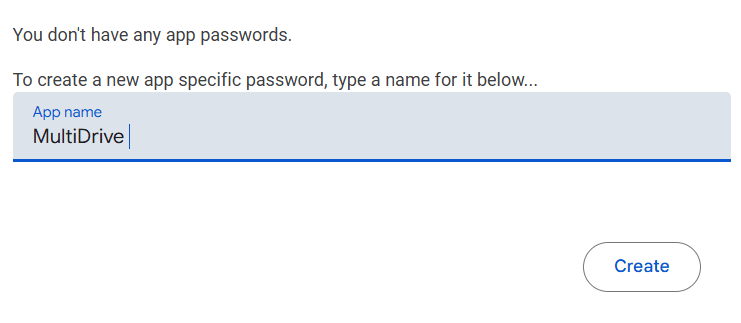
Once enabled, open the same page and select App passwords.

Add app name and click Create.
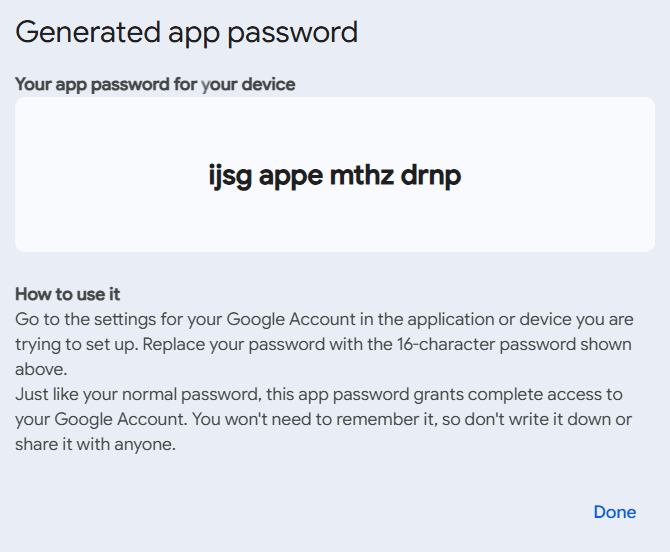
Copy the generated 16-digit password (it is shown only once!) and save it somewhere secure.
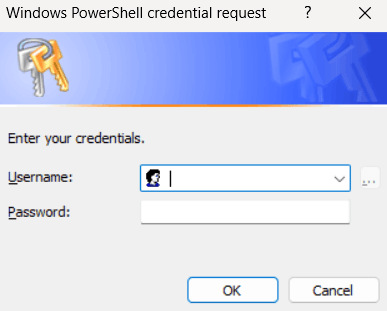
After running the script, select your email address next to the user, then enter the generated password (credentials).
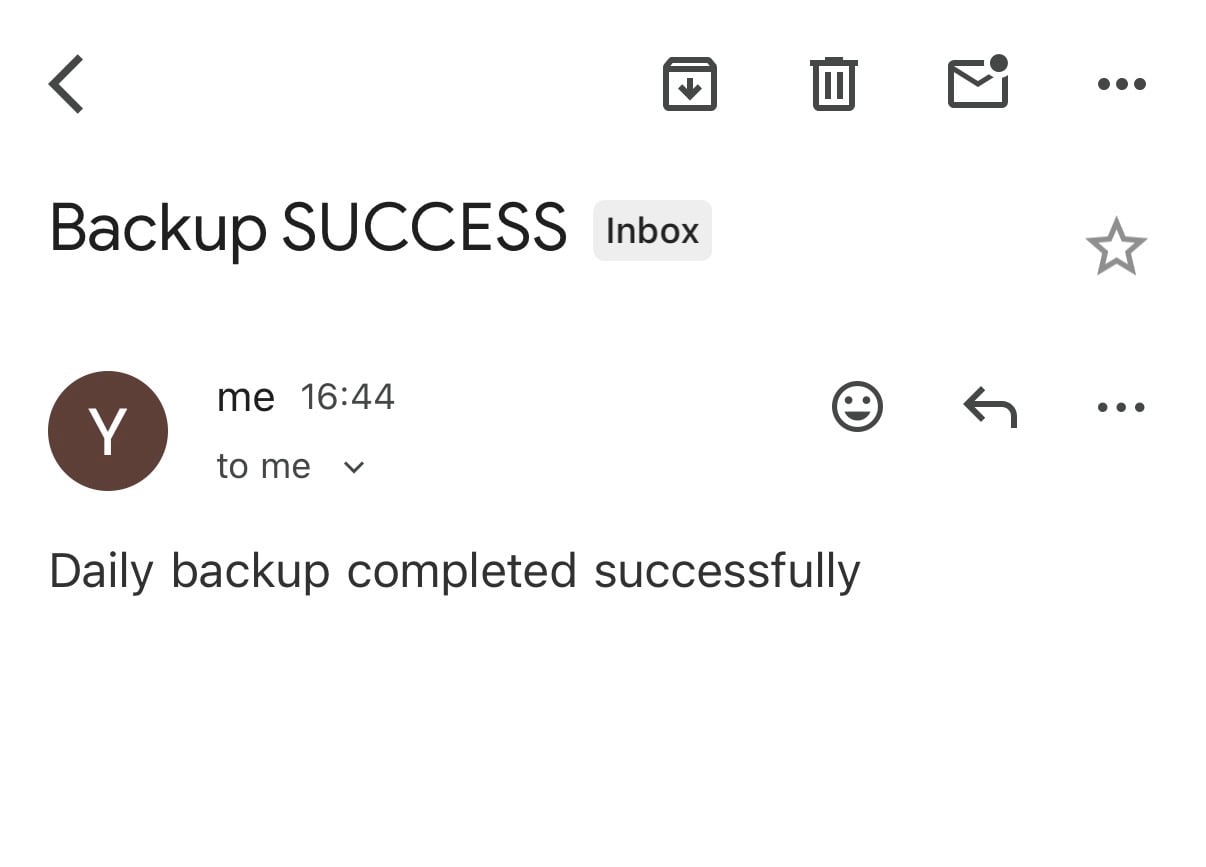
You will receive a notification when the backup is finished.
Multiple backup destinations
Create redundant auto backups to multiple locations:
REM Primary backup to external drive
%MDCLI% backup %SOURCE% "E:\Backups\%BACKUP_NAME%" --zip

REM Secondary backup to network folder
%MDCLI% backup %SOURCE% "\\YourServer\SomeFolder\%BACKUP_NAME%" --zip

REM Tertiary backup to cloud sync folder
%MDCLI% backup %SOURCE% "C:\Users\YourName\Dropbox\Backups\%BACKUP_NAME%" --zip
Differential auto backup strategy
While MultiDrive doesn't support native incremental backups, you can implement a strategy:
- Weekly: create a task to run full drive backup every Sunday.
- Daily: Create a separate task that backs up only data partitions
Expert Tips for a Reliable Automated Backup
| Tip | Why & How |
|---|---|
| Test Restore procedure | Periodically test restoring from backup to ensure it works. Use Restore task in MultiDrive GUI or CLI apps. |
| Monitor disk space | Ensure backup drive has sufficient free space |
| Review logs regularly | Check backup_log.txt weekly to catch failures early |
| Follow 3-2-1 rule | Keep 3 copies, on 2 different drives, with 1 copy offsite (Cloud). |
| Schedule during off-hours | Run backups when computer isn't actively used (2-4 AM) |
| Enable wake timers | Allow computer to wake from sleep to perform backup |
| Keep multiple versions | Don't overwrite; use dated filenames and clean up old backups separately |
Troubleshooting
Task runs but auto backup doesn't complete
Symptoms: Task shows "completed" but no backup file created
Solutions:
- Check backup_log.txt for error messages
- Verify backup drive is connected and accessible
- Ensure sufficient free space on destination drive
- Confirm script paths use quotes for spaces
- Run script manually as administrator to see live errors
Task fails with error 0x1
Symptoms: Task Scheduler shows "Last Run Result: 0x1"
Solutions:
- Verify script path in Actions tab is correct
- Ensure .bat extension (not .bat.txt)
- Check that MultiDrive CLI path in script is correct
- Verify "Run with highest privileges" is checked
Backup runs but computer doesn't wake from sleep
Symptoms: Scheduled backup skipped when computer is asleep
Solutions:
- Ensure "Wake the computer to run this task" is checked in Conditions tab
- Open Power Options → Advanced → Allow wake timers → Enable
- Check BIOS settings for wake-on-RTC or similar options
- Some laptops disable wake timers on battery - connect to AC power
Permission denied errors
Symptoms: "Access denied" or "Permission error" in log
Solutions:
- Verify task is set to "Run with highest privileges"
- Ensure destination folder has write permissions
- For network drives, verify credentials are correct
- Check if antivirus is blocking MultiDrive CLI
Network drive not accessible
Symptoms: Backup fails with "Path not found" for network location
Solutions:
- Use UNC path instead of mapped drive letter (\\server\share vs Z:\)
- Map network drive in script before backup (see Advanced section)
- Ensure network is available at scheduled time
- Store credentials in Windows Credential Manager
Frequently Asked Questions
Common questions about automating backups with MultiDrive CLI
Author

Ready to automate your backups?
Download MultiDrive for free and set up your own auto backup system using the CLI and Task Scheduler.